
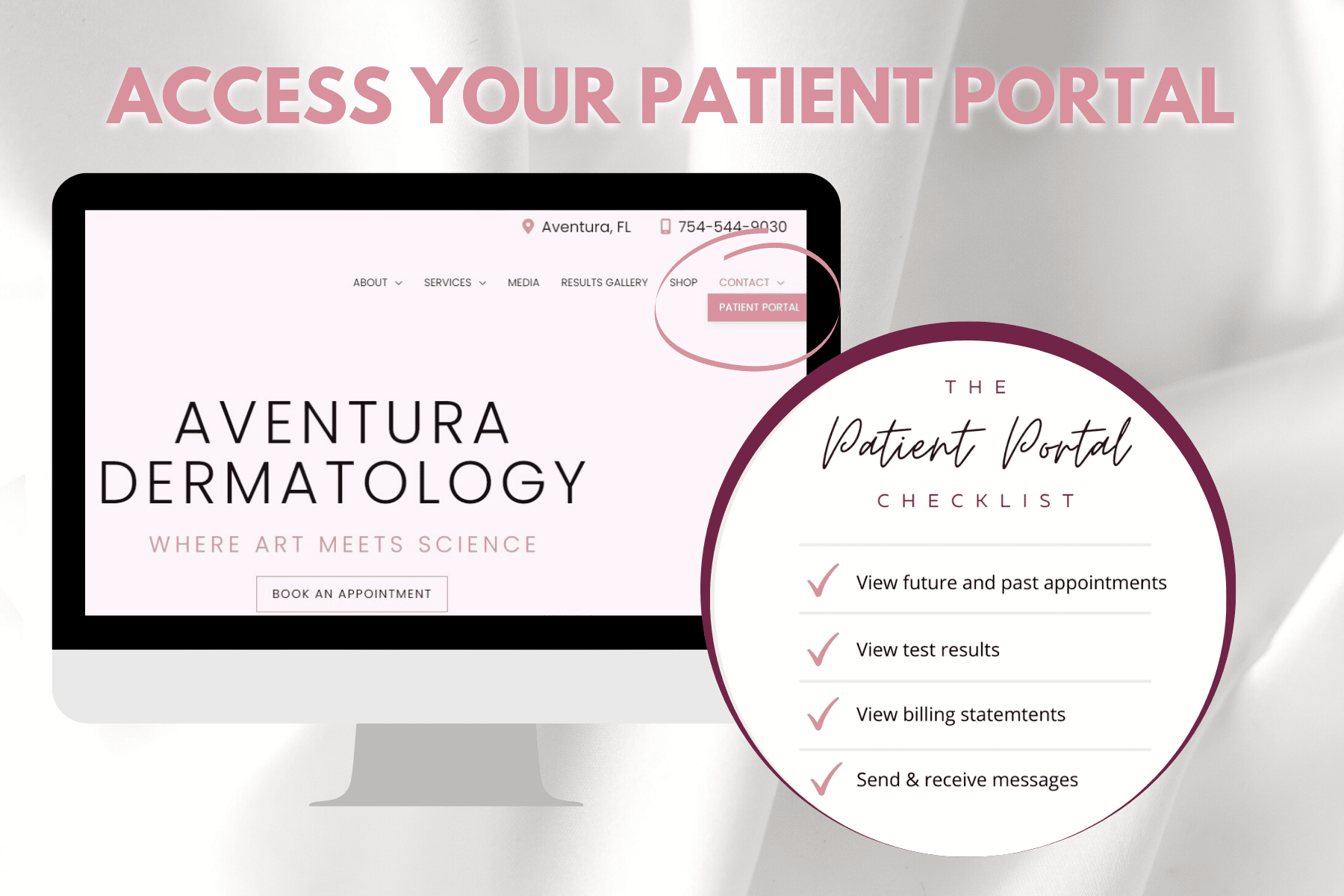
We have launched our new patient portal!
Aventura Dermatology is happy to announce that we have a new and improved patient portal! Enjoy a more informative, flexible, and progressive patient experience starting here!
We invite you to access the portal and enter all of your most current information as this will help maximize efficiency during your next visit!
Step By Step Instructions To Access Your Portal
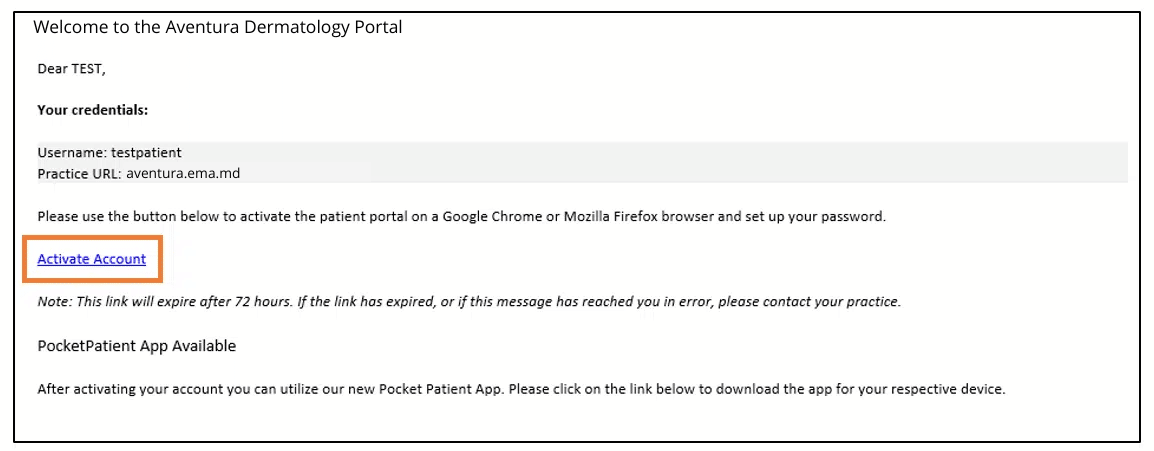
1. Once the patient portal is activated by our staff, you will receive an email message. See sample email message below.
2. From the email message, click on the Activate Account blue hyperlink.
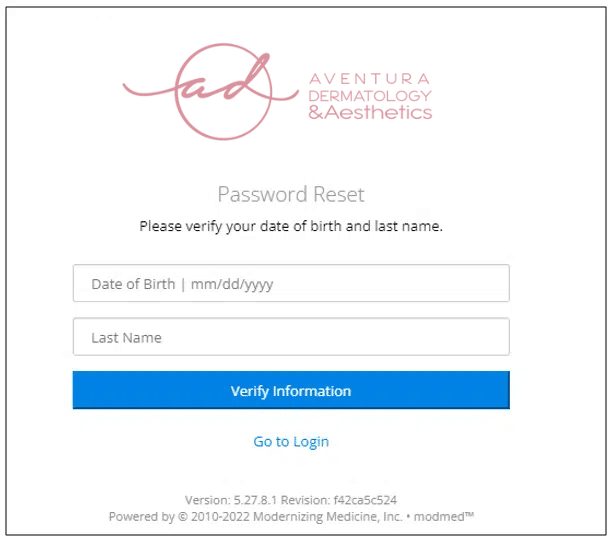
3. You will be directed to the Patient Portal. Enter your date of birth and your last name. Then, select Verify Information.
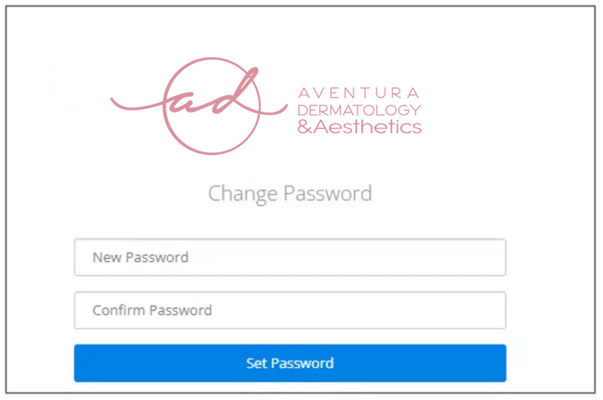
4. The system will prompt you to enter a password. Enter a new password of your choice and click on Set Password.
5. After setting up your password, you will be taken to the Aventura Dermatology Patient Portal.
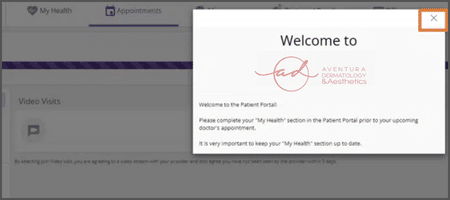
6. Close out the Welcome to pop-up message. Then, click on My Health.

7. From the left panel, click on each tab to review and update your information.
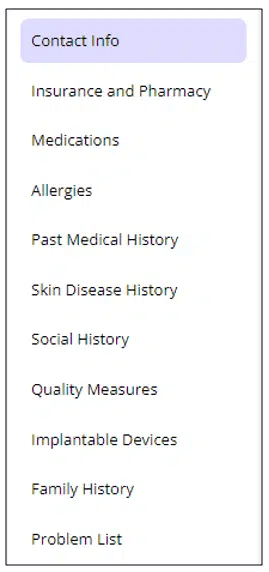
8. Prior to your appointment, select your pharmacy, enter your medications, allergies, past medical history, and skin disease history.
NOTE: To add the pharmacy of your preference, click on Insurance and Pharmacy and select Add Surescripts Pharmacy. Search your pharmacy by entering the name and address in the filters. Once the pharmacy is identified, select the blue hyperlink of your pharmacy of choice.
9. To view your Upcoming Appointments, click on the Appointments tab.

10. To view test results sent by your provider, click on the Test and Results tab.

11. To pay your bill and view your statements, click on the Billing tab.

Are you ready to take the next step?
REQUEST AN APPOINTMENT
The form is loading. If it does not appear, call 754-544-9030.